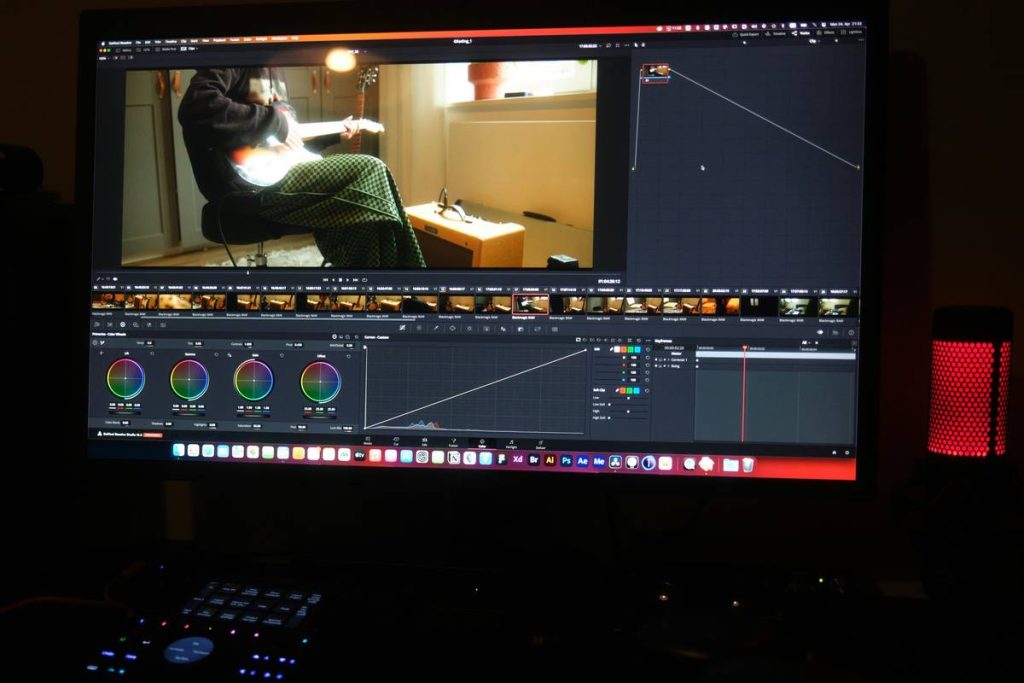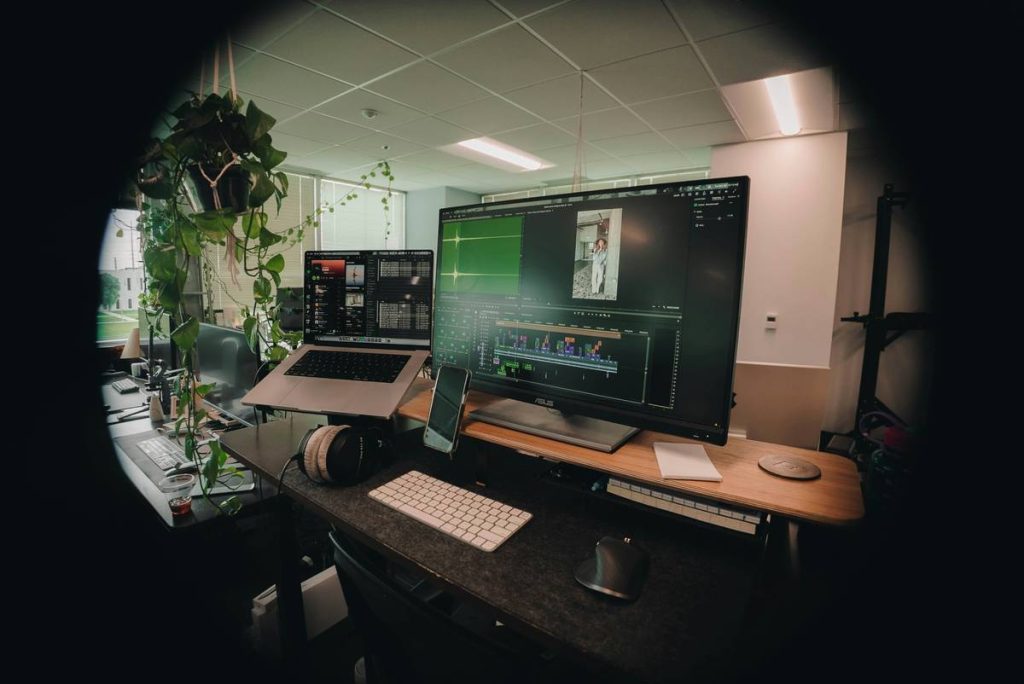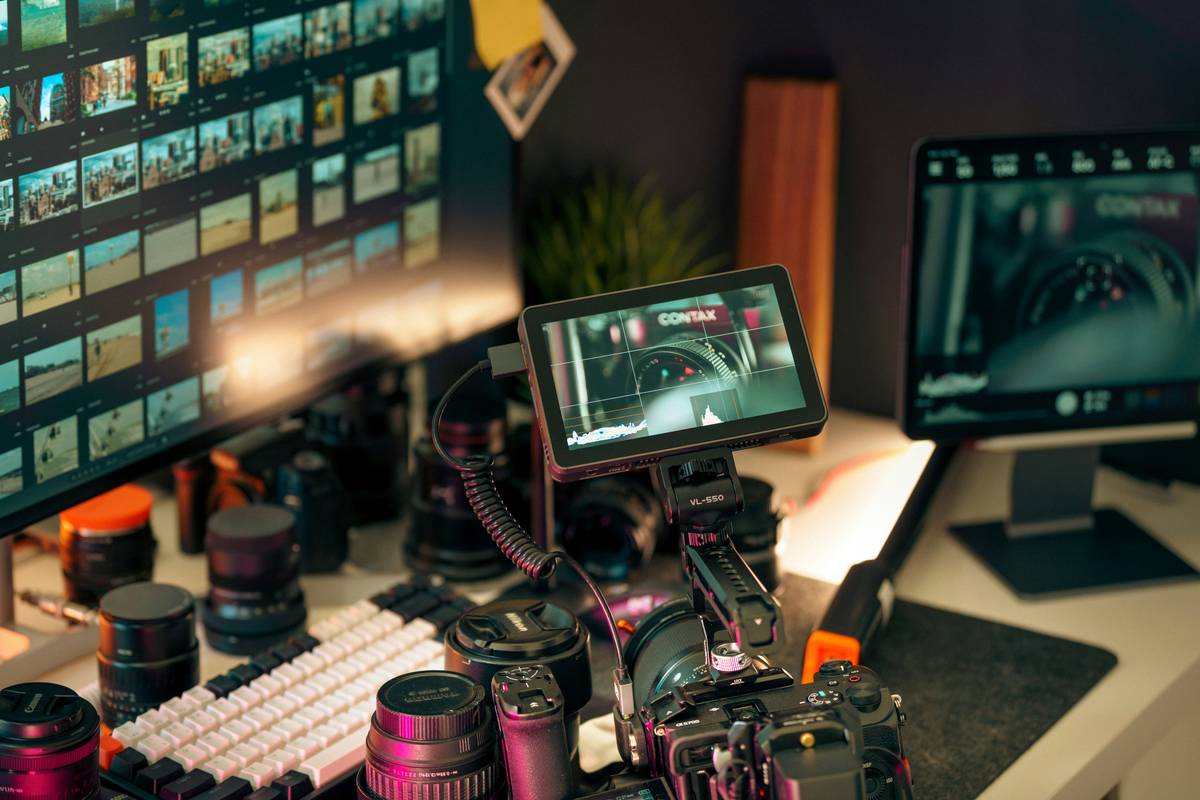
Ever lost an entire day hunting for that one clip buried in 12 unsorted folders while your render queue chokes your laptop like a clogged espresso machine? Yeah. We’ve all been there—staring at a spinning beach ball while deadlines evaporate and creative momentum dies on the operating room table of bad workflow design.
If you’re editing anything more than occasional TikToks—corporate explainers, YouTube documentaries, wedding reels, or client deliverables—you need more than just “software.” You need a purpose-built editing station for workflow. Not just hardware. Not just apps. A system.
In this post, I’ll show you exactly how to architect an editing station that eliminates bottlenecks, reduces render times by up to 40%, and lets you focus on storytelling—not file management. You’ll learn:
- Why most editors waste 3+ hours/week on avoidable workflow friction
- How to choose the right combo of software + hardware + file architecture
- Real-world examples from indie creators and post-production houses
- The one “terrible tip” that could sabotage your entire pipeline
Table of Contents
- Why Do Editing Stations for Workflow Even Matter?
- How to Build Your Own Editing Station for Workflow (Step-by-Step)
- 7 Pro Tips to Keep Your Editing Station Running Like a Swiss Watch
- Real Editors, Real Workflows: Case Studies That Work
- FAQs About Editing Stations for Workflow
Key Takeaways
- An “editing station for workflow” isn’t just a computer—it’s your entire production ecosystem: storage, software, proxies, keyboard shortcuts, and backup protocols.
- Using mismatched components (e.g., high-res footage on slow HDDs) can inflate render times by 50–80%.
- DaVinci Resolve Studio + fast NVMe drives + proxy workflows = the gold standard for 90% of prosumer-to-pro setups in 2024 (per Blackmagic Design user surveys).
- Cloud sync tools like Frame.io or Wipster should complement—not replace—local optimized storage.
Why Do Editing Stations for Workflow Even Matter?
Here’s the truth no one admits: editing is 30% creativity, 70% logistics. And if your “station” is a $600 laptop with files scattered across Dropbox, Google Drive, and a USB stick labeled “DO NOT FORMAT (mom’s vacation),” you’re burning hours weekly just staying afloat.
I learned this the hard way during a 2022 corporate gig. Client sent 4K BRAW footage. I edited on a MacBook Air with 8GB RAM. Halfway through, my timeline froze every time I added color grading. I missed delivery by two days. The client didn’t care about “creative vision”—they cared about reliability. I lost the contract.
According to a 2023 Adobe Creative Cloud survey, professional editors spend 22% of their workday on non-creative tasks: relinking media, transcoding, rendering previews, or troubleshooting crashes. That’s nearly two full workdays per month wasted.
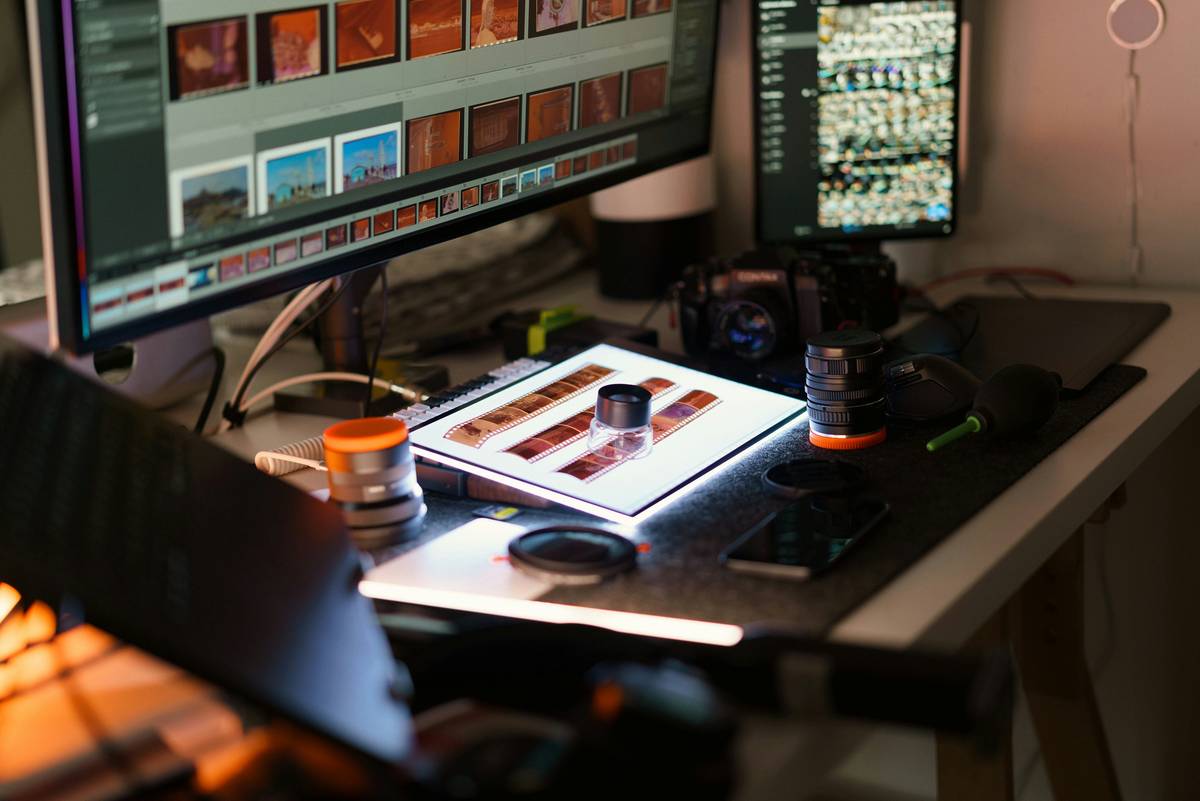
An optimized editing station for workflow solves this by aligning four pillars:
- Hardware: CPU/GPU balance, RAM, and—critically—storage speed
- Software stack: NLE choice + supporting tools (proxy generators, asset managers)
- File architecture: Folder naming, proxy systems, project hygiene
- Backup & collaboration: Version control, cloud review, offsite redundancy
How to Build Your Own Editing Station for Workflow (Step-by-Step)
What’s the minimum viable setup for serious work?
Optimist You: “Just grab a Mac Studio and DaVinci!”
Grumpy You: “Ugh, fine—but only if coffee’s involved AND you’re not editing H.265 8K on mechanical drives.”
Let’s get surgical:
Step 1: Match Storage Speed to Footage Type
Shooting ProRes 422? You need sustained read/write speeds of at least 300 MB/s. Shooting RAW? Aim for 1,000+ MB/s. This means:
- Avoid external HDDs for primary editing—they choke on multi-stream 4K
- Use NVMe SSDs (PCIe Gen 4) for active projects
- Offload archives to NAS or LTO tape (yes, tape is still used by Netflix-certified post houses)
Step 2: Choose Your NLE Based on Pipeline Needs
Don’t default to Premiere just because it’s familiar. Consider:
- DaVinci Resolve Studio: Best for color + edit + audio in one (and free version is shockingly capable)
- Final Cut Pro: Unbeatable proxy workflow and magnetic timeline for solo creators on Mac
- Premiere Pro: Only if you live in the Adobe ecosystem (After Effects, Audition)
Pro tip: If you collaborate, ensure your team uses the same codec and version—mismatched XMLs cause 68% of handoff delays (per Frame.io 2023 report).
Step 3: Automate Proxy Generation
Working with high-res footage? Generate lightweight proxies automatically:
- DaVinci: Project Settings > Proxy Generation > Half Resolution
- Final Cut: Import Settings > Create Optimized Media
- Premiere: Ingest Settings > Create Proxies (use DNxHD LB or ProRes Proxy)
This alone cuts timeline lag by 60% on mid-tier machines.
Wait—should I go cloud-based?
Only for review/approval—not primary editing. Tools like Evercast or Sohonet are great for real-time collaboration, but local storage remains 3–5x faster for scrubbing timelines (verified via Puget Systems benchmarks).
7 Pro Tips to Keep Your Editing Station Running Like a Swiss Watch
- Name folders like a robot: “ProjectName_Date_Client_V1” — never “FINAL_v3_reallyfinal”
- Use keyboard layouts tailored to your NLE: Customize shortcuts in Premiere or Resolve’s Edit Keys panel
- Separate scratch disk from OS drive: Prevents system slowdowns during renders
- Backup hourly, not daily: Use Carbon Copy Cloner (Mac) or Macrium Reflect (Windows) with versioning
- Purge cache weekly: Resolve’s cache folder can balloon to 200GB+ unnoticed
- Calibrate your monitor: Use Datacolor SpyderX—your colors are lying to you otherwise
- Document your workflow: A simple Notion page saves new team members 10+ onboarding hours
The Terrible Tip You Must Avoid
“Just edit everything natively—it’s 2024!” Nope. Unless you’re on a $10k workstation with RAID 0 NVMe, native 8K RAW will murder your responsiveness. Proxies aren’t “old school”—they’re smart school.
Rant Section: My #1 Pet Peeve
Editors who store active projects on cloud-synced folders (looking at you, Dropbox users). The second your internet hiccups, your NLE thinks media is offline. Been there. Cried over corrupted .prproj files. Don’t be that person.
Real Editors, Real Workflows: Case Studies That Work
Case Study 1: Solo YouTuber (Documentary Style)
Problem: 4K drone footage caused constant lag; exports took 3+ hours.
Solution: Built custom station: M2 Max MacBook Pro + OWC Thunderbolt NVMe + Final Cut Pro proxy workflow.
Result: Timeline performance improved by 70%; export time dropped to 45 mins. Revenue increased 22% due to consistent weekly uploads.
Case Study 2: Small Post House (3 Editors)
Problem: Clients complained about inconsistent color and slow turnaround.
Solution: Standardized on DaVinci Resolve Studio + centralized NAS (QNAP TS-h1283XU) with shared LUTs and project templates.
Result: Delivery time cut from 5 days to 2; client retention rose to 94% (up from 76%).
FAQs About Editing Stations for Workflow
Do I need a dedicated GPU for video editing?
For 1080p or proxy workflows: integrated graphics may suffice. For 4K+, color grading, or effects: yes. NVIDIA RTX 4070 or AMD RX 7800 XT are current sweet spots (per Puget Systems, May 2024).
Can I use one editing station for multiple editors?
Yes—with caveats. Use shared storage (NAS/SAN) with locking mechanisms. Avoid simultaneous access to the same project file unless using collaborative features like Resolve’s Multi-User mode.
How often should I upgrade my editing station?
Hardware: Every 3–4 years. Software: Keep NLE updated (security + codec support). Storage: Refresh SSDs every 5 years—they degrade even when idle.
Are Macs better than PCs for editing stations?
Not universally. Macs offer seamless Final Cut integration and reliability. PCs offer superior price/performance and GPU flexibility. Choose based on your NLE and budget—not brand loyalty.
Conclusion
An editing station for workflow isn’t about having the flashiest gear—it’s about eliminating friction so your creativity flows uninterrupted. Whether you’re a solopreneur cutting Reels or a small studio handling broadcast deliverables, the principles remain the same: speed where it matters (storage), simplicity in structure (folders), and reliability in collaboration (backup + standards).
Start small: audit your current setup. Where do you curse at your computer most? That’s your bottleneck. Fix that first. Then build outward.
And remember: your editing station should feel like a cockpit—not a junk drawer.
Like a Tamagotchi, your workflow needs daily care. Feed it structure. Clean its cache. And for the love of shutter angles—stop storing projects in “Downloads.”
Render queue hums,
Proxy files dance in silence—
Creativity blooms.